
Interactive Notebooks
Python, and R interactive notebooks directly within Pennsieve
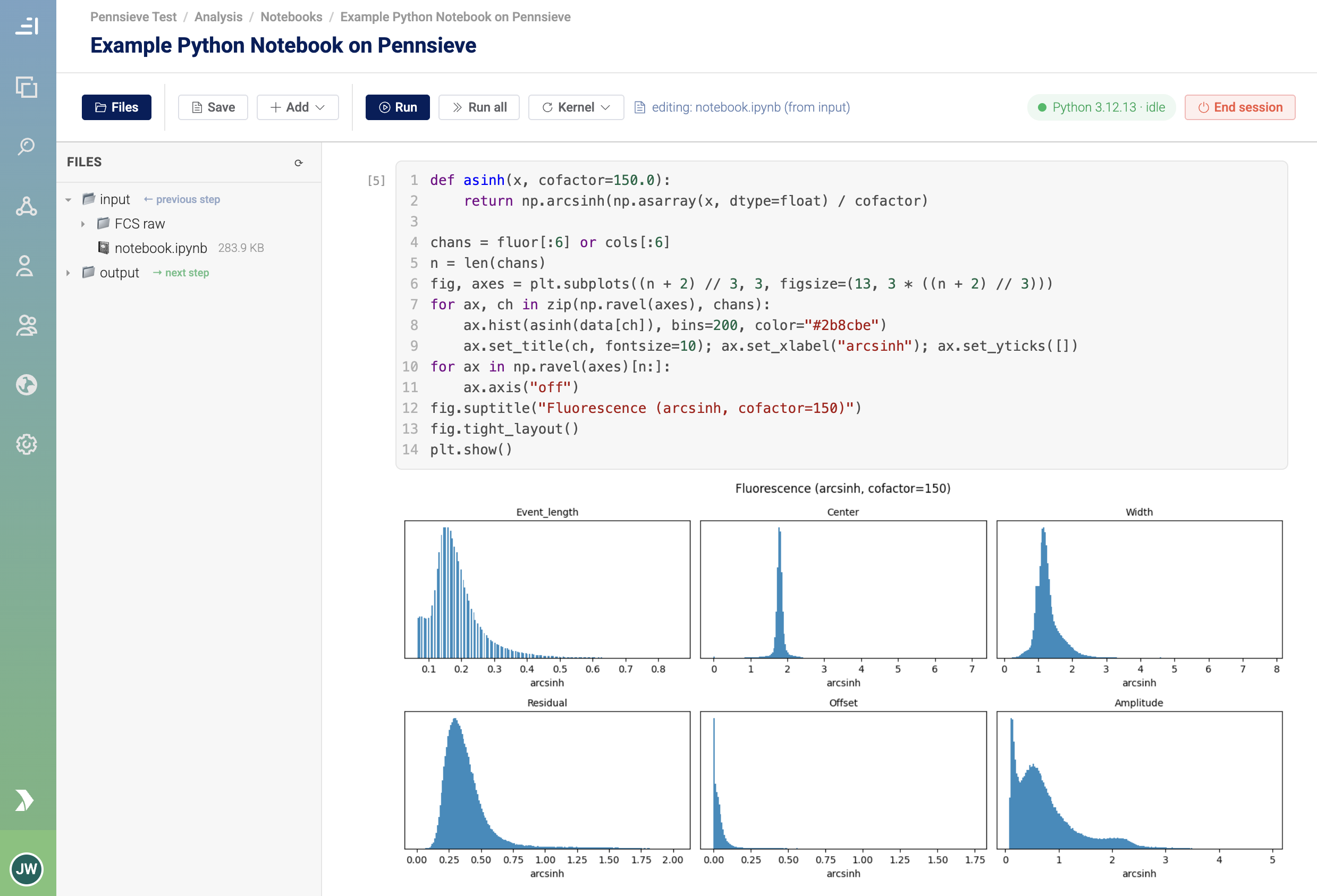
Some analysis steps aren't fully automatic — you want to look at the data, try something, see the result, and decide what to do next. An Interactive Notebook lets you drop a live Jupyter notebook into the middle of a
workflow. The workflow pauses, you work in the notebook for as long as you need, and when you're done it picks up right where it left off.
It's the same Jupyter you already know — write Python, run a cell, see the output, make a chart — but running next to your data inside Pennsieve.
How it works
 Workflow starts
      │
      ▼
 ... earlier steps prepare your files ...
      │
      ▼
 📓 Interactive Notebook  ⏸  ← the workflow PAUSES here and waits for you
      │                        (you open the notebook, explore, run cells)
      │  you click "Close session" when finished
      ▼
 ... later steps continue automatically ...
      │
      ▼
 Workflow finishes
While the notebook is open, the rest of the workflow simply waits. Nothing downstream runs until you close the session.
Using it
- Add it to a workflow. When building a workflow, include the Jupyter Notebook processor at the point where you want to step in by hand. (Your workspace admin may have set this up for you.)
- Start the run like any other workflow.
- Open the notebook. On the run's page, once the notebook step is ready, an Open Notebook button appears. Click it — the notebook opens in a new browser tab.
- Work. Write and run cells, inspect your files, make plots — anything you'd do in a normal Jupyter notebook.
- Close the session when you're finished (the Close session button in the notebook). The workflow then continues on its own.
The notebook can take a short moment to start the first time you open it — that's normal; it's spinning up your private environment.
Your files
The notebook sees the same files as the rest of the workflow — no copying, no uploading.
- Files chosen as inputs to the step are already there when the notebook opens.
- Anything you save to the output folder is picked up by the workflow's later steps, exactly as if a regular processor had produced it.
- The notebook file itself (
.ipynb) and anything you write to disk are saved on the workflow's storage drive, so they're still there afterward.
In short: interact with your files live, save your results to the output folder, and the workflow carries them forward.
Saving and "resuming"
Two different things are worth separating:
- Your notebook and files are saved. The
.ipynbdocument (your code and the outputs you saved) and any files you wrote persist on the drive. If you reopen the notebook, they're still there. - The live, in-memory state is not. Variables, loaded dataframes, models in memory — those disappear when the session closes (just like restarting a kernel on your laptop). To get them back, re-run your cells. This is expected, and it's why it's good practice to keep your notebook runnable top-to-bottom.
If your connection drops or you close the tab without clicking Close session, the workflow won't be left hanging — see What if I forget to close it? below.
Keeping it secure
- Only you can open it. An interactive session can be opened only by the person who started that workflow run. Other members of your workspace can't attach to your live notebook.
- Encrypted in transit. The connection to your notebook is always over HTTPS.
- Private to your run. Each session runs in its own isolated environment with access only to that run's files.
- Access is short-lived and scoped. The link that connects your browser to the kernel is freshly authorized each time and is tied to your specific run.
What if I forget to close it?
The session won't run forever:
- Idle timeout — if the notebook sits with no activity for a while (about an hour by default), it shuts itself down and the workflow continues.
- Maximum length — a single interactive session has an upper time limit (about 12 hours) after which it's automatically closed.
- Cancelling the run also tears the notebook down cleanly.
So an abandoned session is always reclaimed — but the tidy thing to do (and the fastest way to let the workflow continue) is to click Close session when you're done.
Good to know
- It costs money while it's open. An interactive session keeps a computer running the whole time you're connected, so close it when you're finished rather than leaving it idle. The idle/maximum timeouts are a safety net, not a substitute for closing it.
- Availability depends on your compute node. Interactive notebooks have to be turned on for the compute node your workflow runs on. If you don't see the option, ask your workspace admin to enable interactive sessions for that node.
- Not available on fully isolated (air-gapped) nodes. Compute nodes configured for the strictest "compliant" networking have no inbound internet path, so a browser can't reach the notebook there.
- It's still a regular Jupyter notebook. Everything you know about Jupyter applies — install packages, import libraries, make visualizations.
FAQ
Do I have to use the notebook, or can the workflow skip it?
If a workflow includes an interactive step, it will pause and wait there. Open the notebook and close the session to let it continue.
Can a teammate take over my session?
No. Only the person who started the run can open its notebook.
I closed the tab by accident — did I lose my work?
Your saved notebook and files are safe on the drive. Any in-memory variables are gone; reopen the notebook (if the session is still alive) or re-run your cells.
Why did my notebook take a while to open?
The first connection starts up your private environment. After that it's quick.
My results aren't showing up in later steps.
Make sure you saved them to the output folder — that's what the workflow's later steps read from.
Updated about 2 months ago