
GitHub
Associate you GitHub account with your user profile to enable repository publishing and workflow management
Overview
Users of the Pennsieve Platform can link their GitHub account to their Pennsieve profile. This enables users to:
- Register GitHub repositories as Pennsieve applications
- Publish GitHub repositories to generate a public landing page and citation DOI.
Integration of GitHub and Pennsieve allows for seamless interaction of data and analysis on the platform and supports an integrative approach to publishing both data and code in a meaningful way.
Connecting Your GitHub Account
Pennsieve can track releases in your GitHub repositories and automatically archive them, assign a citable DOI, and generate a landing page for each version — every time you publish a new GitHub release. To use this, you first need to connect your GitHub account to Pennsieve.
This article walks through connecting your account, choosing which repositories Pennsieve can access, and disconnecting or updating access later.
What connecting your account does
When you connect your GitHub account, two things happen:
- You install the Pennsieve GitHub App on your GitHub account or organization, and choose which repositories it can access.
- Pennsieve links that installation to your Pennsieve user profile, so Pennsieve knows which GitHub identity and repositories belong to you.
The Pennsieve GitHub App only requests read access to repository contents and metadata (for example, releases and tags). Pennsieve does not write to, modify, or delete anything in your GitHub repositories.
Connecting your account
-
Sign in to Pennsieve and go to My Workspace.
-
Click on Account Settings then select Integrations, then select GitHub.
-
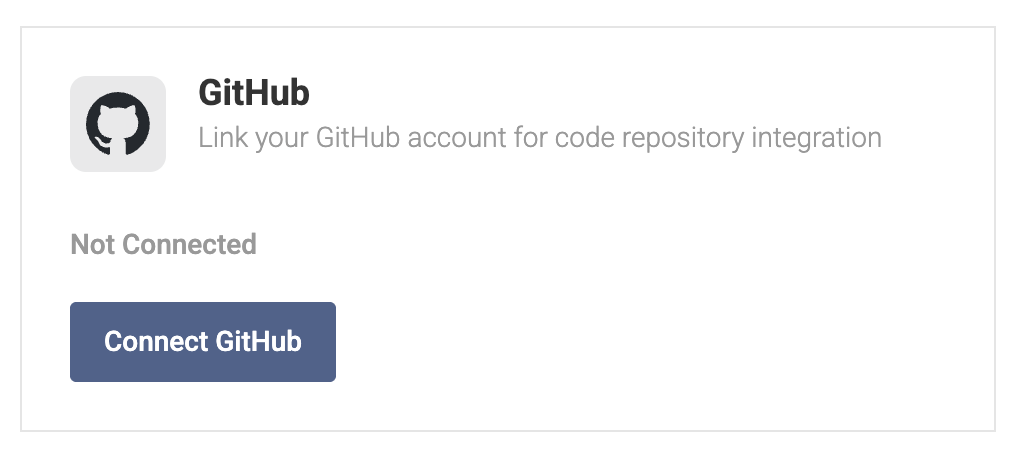
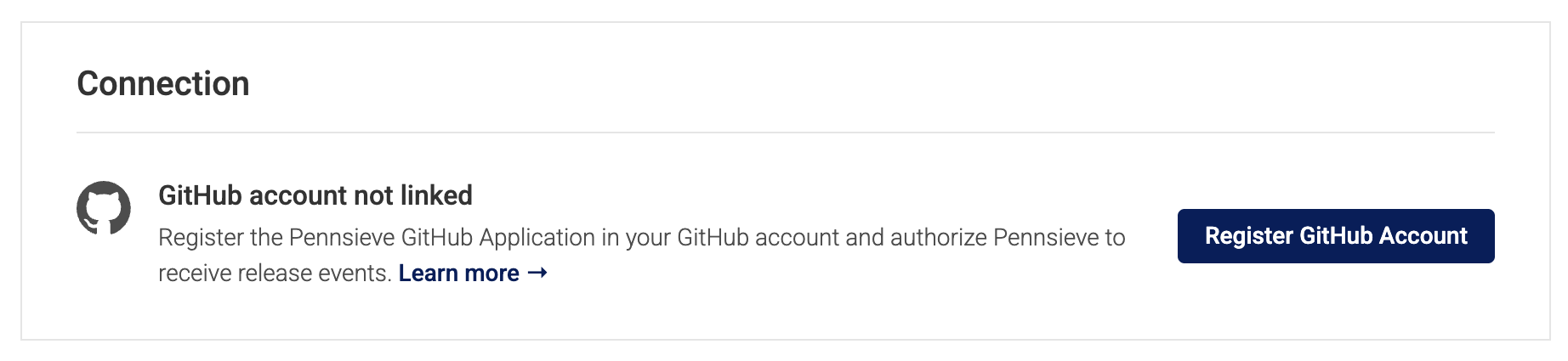
In the GitHub box, click Connect GitHub and then choose Register GitHub Account.
This opens a new window on GitHub's website, where you'll be asked to authorize the Pennsieve GitHub App.
-
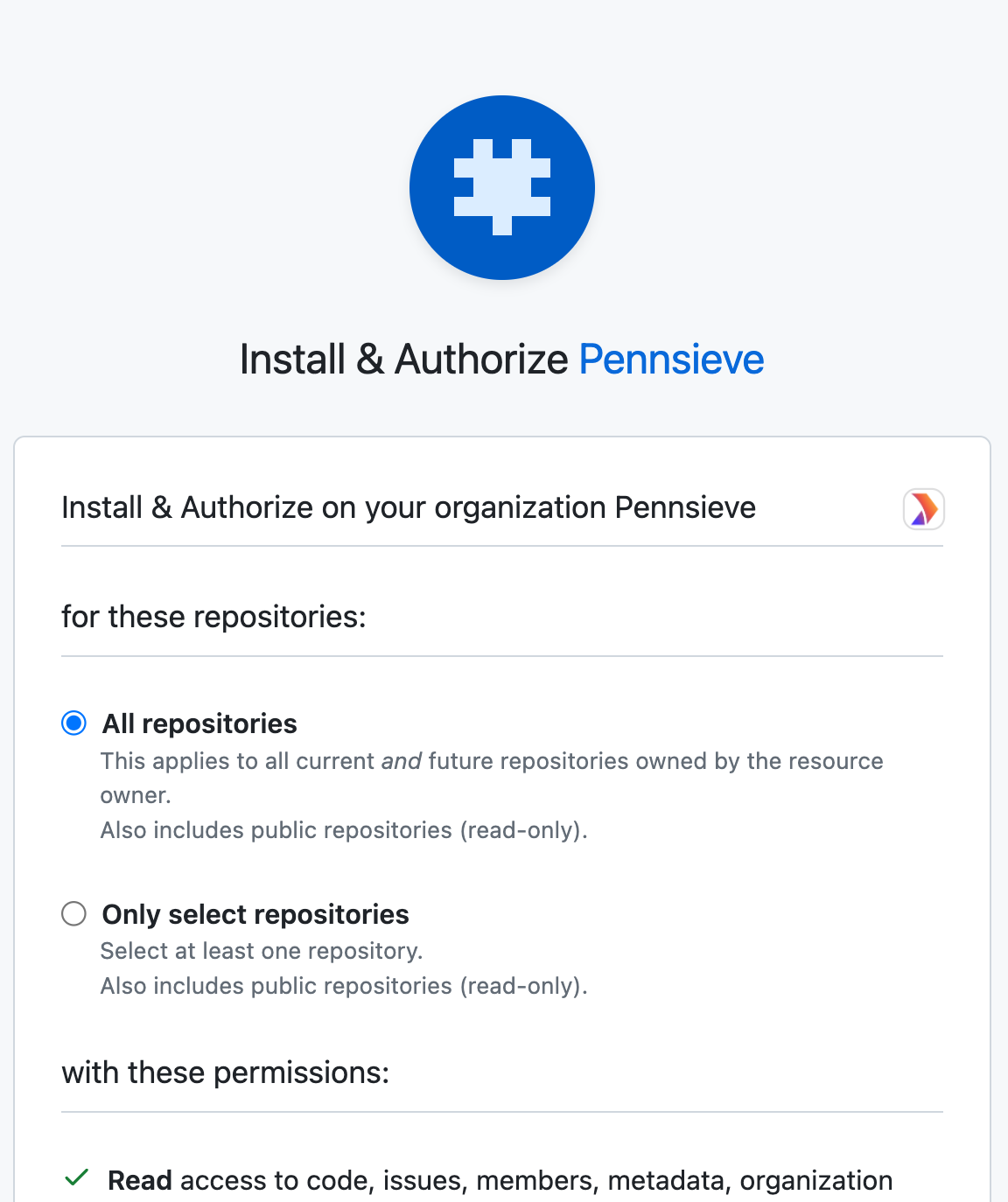
Choose the GitHub account or organization to install the app on.
-
Choose which repositories the app can access:
- All repositories — Pennsieve can access every current and future repository in the account/organization.
- Only select repositories — choose specific repositories from a list. You can change this list later.
-
Select Install & Authorize (or Install, depending on your organization's settings).
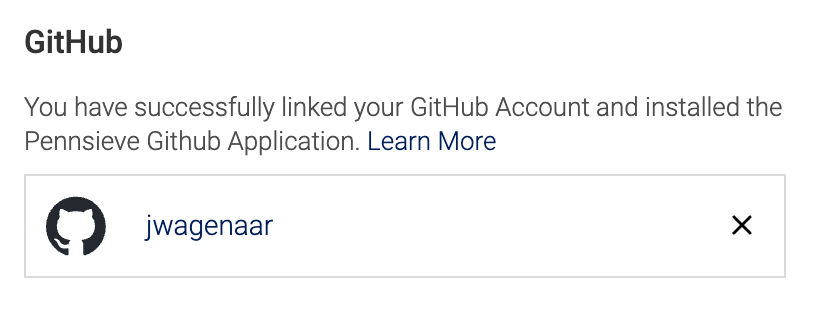
GitHub then redirects back to Pennsieve and completes the connection automatically. The window will close on its own, and you'll see your linked GitHub profile (username and avatar) on the GitHub integration page.
Organization approvalIf you're installing the app on a GitHub organization you don't own or administer, your organization owner may need to approve the installation before it becomes active.
Viewing and updating repository access
Once connected, the GitHub integration page shows your linked GitHub profile and the repositories currently accessible to Pennsieve.
To change which repositories Pennsieve can access (for example, to add a new repository if you originally selected specific repositories rather than all of them):
- Go to My Workspace > Settings > Integrations > GitHub.
- Select Update Integration.
- In the GitHub window that opens, adjust repository access, then confirm the change.
You can also manage the installation directly from GitHub at any time, under your GitHub account's Settings > Applications > Installed GitHub Apps.
Where you'll see your connected repositories
Repositories that Pennsieve has access to appear under My Workspace > My Code, where you can enable publishing for a repository, view its release history, and see published landing pages and DOIs.
Disconnecting your GitHub account
- Go to My Workspace > Settings > Integrations.
- In the GitHub box, click Manage GitHub.
- Scroll down and select Disconnect GitHub.
- Confirm the removal.
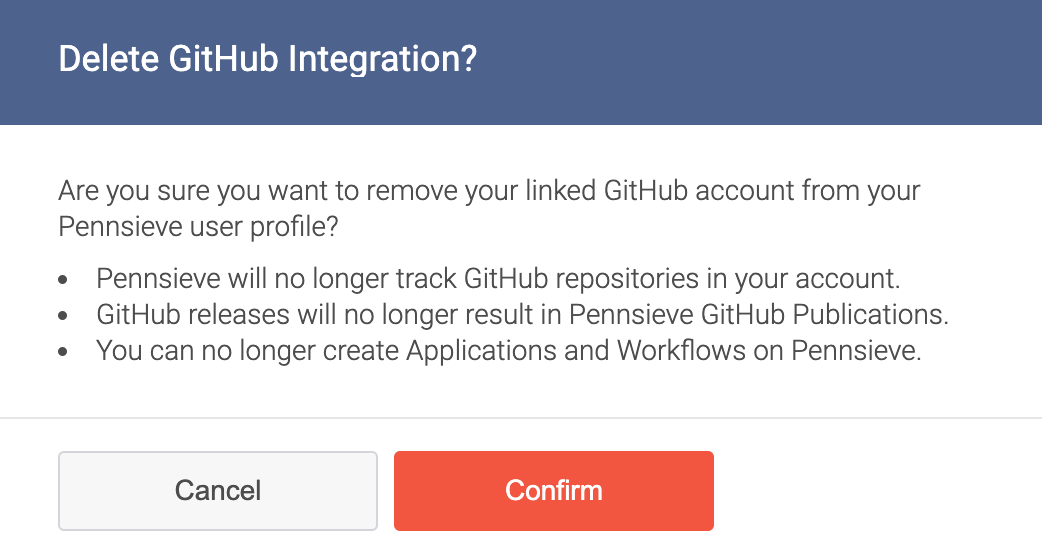
Disconnecting removes the link between your Pennsieve profile and your GitHub account, and uninstalls the Pennsieve GitHub App from your GitHub account or organization. Pennsieve will no longer receive events from your GitHub account. Any datasets or releases you've already published to Pennsieve Discover are not affected.
Troubleshooting
"Failed to connect GitHub account. Please try again."
This appears if the connection process is interrupted or GitHub reports an error. Select Register GitHub Account (or Update Integration) again to retry. If the problem continues, disconnect and reconnect your account.
The GitHub window closes but nothing happens.
Make sure your browser isn't blocking pop-up windows for the Pennsieve site, then try again.
I don't see a repository I expected.
Confirm the repository was included when you chose All repositories or Only select repositories during installation. Use Update Integration to add it without having to disconnect and reconnect. It takes a short period of time for the modifications made when Updating the GitHub Integration (adding or removing repository access) to be reflected on Pennsieve. Click the Refresh list icon on the My Code page to see the updated list of accessible repositories.
Updated about 2 months ago